
Quota Management, Screening Out, and Participant Statuses (September 2026 Updates)
This latest OpinionX update gives you proper control over who qualifies for your survey and when to stop collecting responses from specific groups.
You can now set quotas to cap how many people from each group take part, mark participants as screened out when they don't qualify so that they can be easily excluded from your results dashboard, and see exactly how every participant ended their session with our new participant statuses.
These have been some of the most-requested features from teams running recruitment-heavy studies, and they're the foundation for a few bigger things coming soon (more on that at the end).
Here's everything that's new 👇

1. Managing participant quotas
You can now set quotas that automatically cap how many participants from a given group take part in your survey. Once a group is full, any further participants who match it are routed out instead of continuing, so you don't over-collect from one segment.
You'll find the new Quota Management section on the settings tab of your survey setup. Setting one up uses the same condition builder you already know from Branching Logic. You define the group with a condition, set how many participants you want, and choose where overflow participants go: “Once [100] participants [match the following criteria], send overflow to [the over-quota page].”
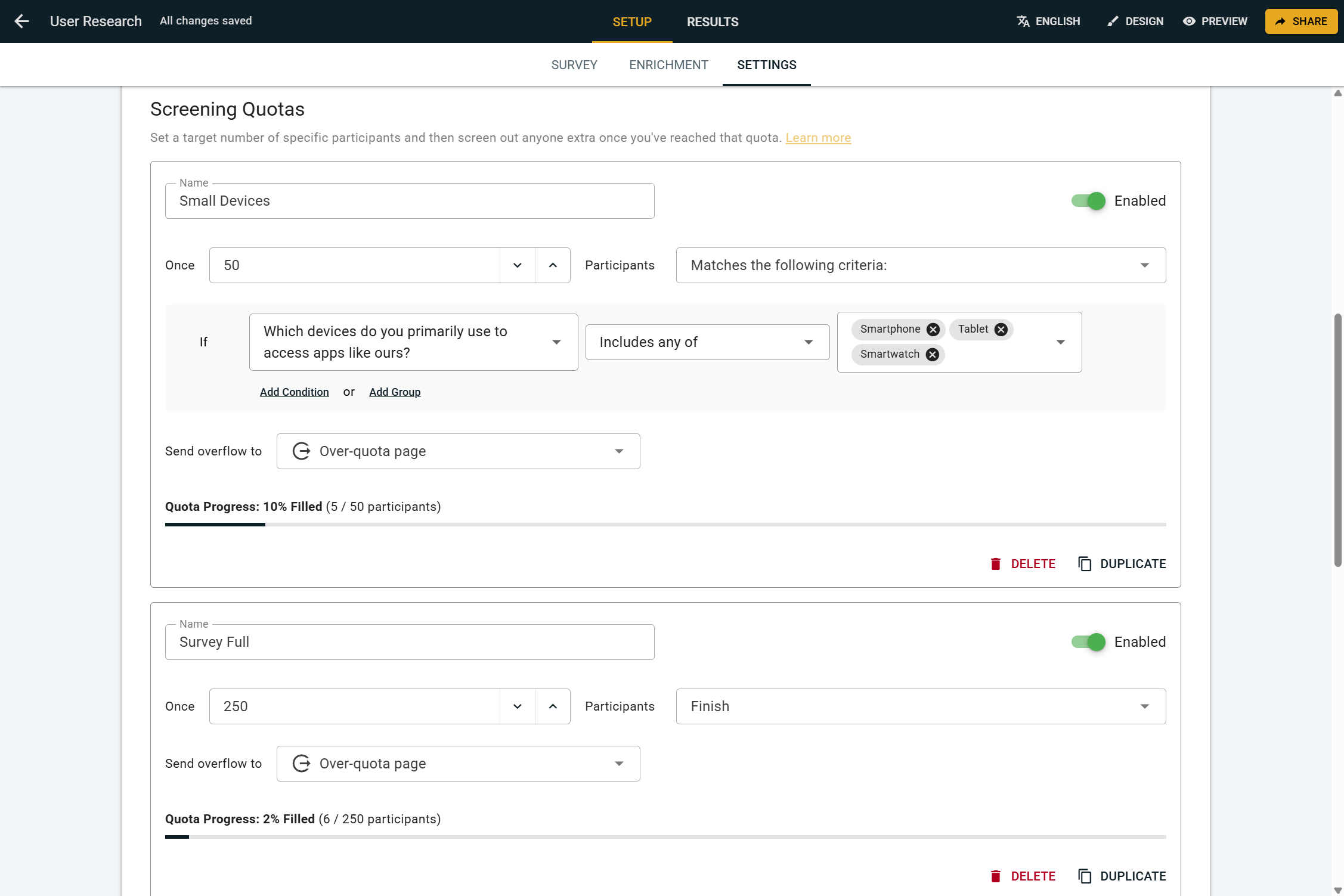
A few things worth knowing:
New quotas are automatically enabled for surveys that have no participants yet, and default to disabled when added to surveys that are already running, so you never accidentally start capping a live survey before you've finished configuring the quota.
Each quota has a live progress bar, so you can watch how full it is as responses come in.
You can also cap total responses, not just groups — set a quota's dropdown to Finish instead of a condition to stop the whole survey once it hits a target number of completed responses.
Overflow participants are marked as Over Quota (see section 3) and sent to a dedicated end page (see section 4), so they're kept separate from your completed responses.
And like almost everything on OpinionX, Screening Quotas, Screen-Outs, and the new participant statuses are all available on every plan, including the free tier.
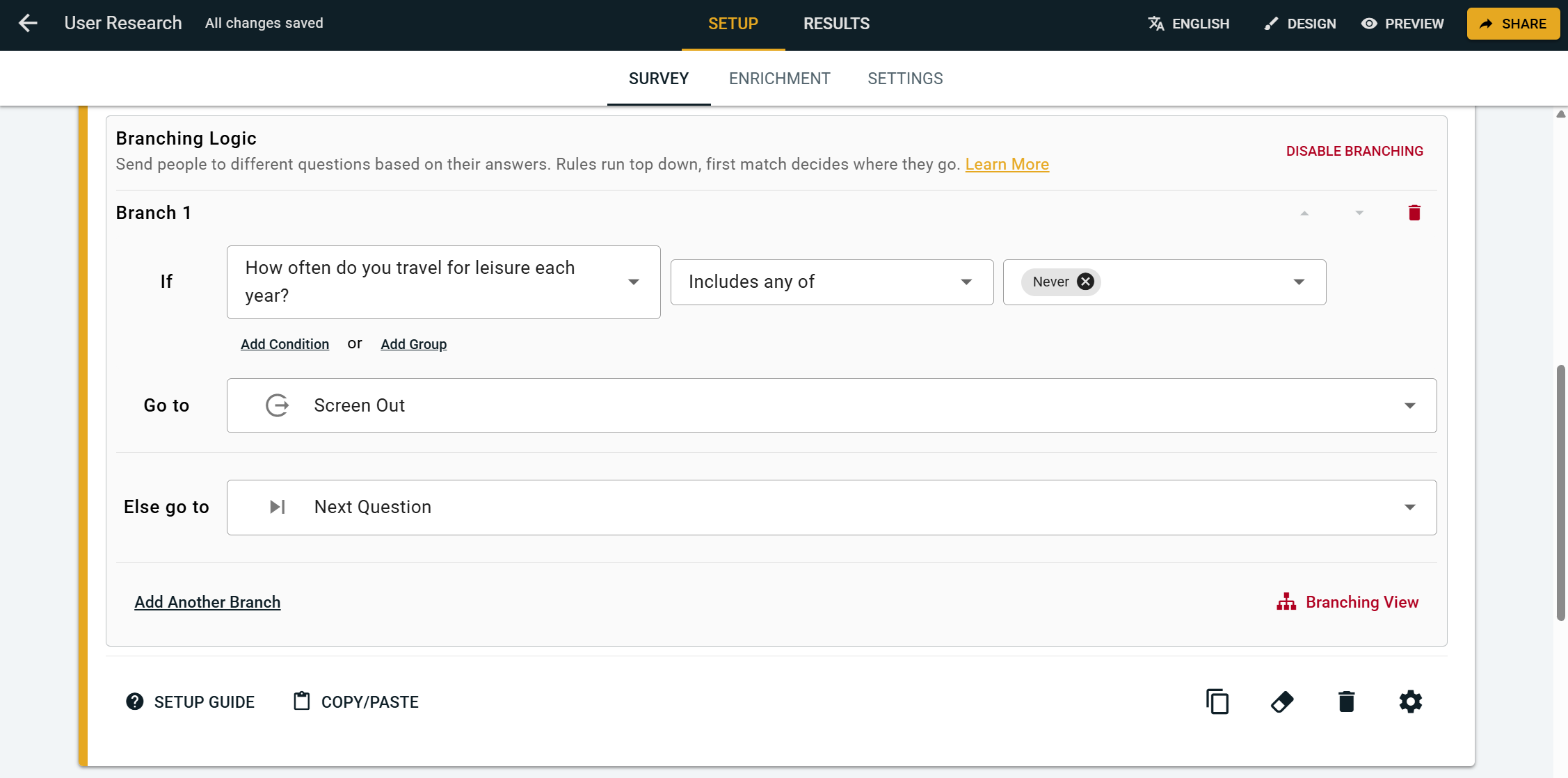
2. Screening out disqualified participants
When a participant doesn't qualify for your survey, you can now screen them out rather than having them counted as a completed response.
There are two ways to do it:
Send them to a Screen Out destination in Branching Logic. Every branching action now includes a Screen Out option in its Go to dropdown, so you can route people who fail a qualifying question straight to a screen-out end page.
Tag a Finish Page as a Screened Out page. Finish Pages now have a Participant Status setting. Set it to Screened Out and anyone who lands there is recorded as screened out — handy when you want a custom message or a custom redirect for disqualified participants.
Participants who are screened out are no longer counted as completes, which keeps your results clean and your completion rate accurate.

3. Participant statuses
Every participant now carries one of four statuses, so you can tell at a glance how each person's session ended:
Completes → reached the end of your survey.
Incomplete → started but didn't finish (our existing incompletes behaviour).
Screened Out → didn't qualify and was routed out.
Over Quota → qualified, but their group was already full.

These statuses show up across your whole results dashboard:
As tiles at the top of the Results Overview, each with its own icon and colour, so you can see your Completes, Incomplete, Screened Out and Over Quota counts side by side. Each tile is also a toggle — click it to include or exclude that group from your results.
On the Participants tab, with an icon and label on each participant row.
As a filter in OpinionX’s segmentation features, so you can include or exclude any group from your analysis with a click.

4. Default Screen-Out and Over-Quota pages
Screen-outs and over-quota participants are sent to two new built-in end pages, so the feature works the moment you enable it, with nothing to set up:
Screen-Out page → "This survey has ended — Based on your answers, this survey is not a match for you. We appreciate the time you took to respond."
Over-Quota page → "This survey is now full — We have collected all the responses we need from people matching your background. Thank you for your interest."
Both pages auto-translate to match your survey's language, just like the rest of your survey, and they use a new exit icon so they're easy to tell apart from your regular Finish Page in the builder.
Want something custom? You can always create your own Finish Page, set its status, customise the message or redirect, and point your branching (for screen-outs) or your quota's overflow (for over-quota) at it instead.
5. Completion rate now reflects every valid survey end
Because there are now more ways to reach the end of a survey than just "completed", we've updated how Completion Rate is calculated. It now measures the share of participants who reached any valid end of your survey (Completes, Screened Out, or Over Quota) rather than only fully-completed responses. In other words, it's everyone except incompletes, as a share of all participants. This gives you a truer read on how many people who started actually made it to a proper end state.
6. Other fixes and improvements
We also shipped some other improvements to OpinionX in recent weeks:
Participants tab column controls → You can now show and hide non-question columns on the Participants tab, not just survey-question columns, for a tidier view of your data.
Share link access → Fixed an issue so that share links reliably grant survey-specific read access to both signed-in and anonymous visitors.
Compare tab → Fixed a display issue on the Compare tab.
Workspace settings → Reorganised the sections on the Workspace Settings page for easier navigation.
Translation improvements → Corrected individual translation issues, such as changing the participant Back button translation in Polish to the more accurate word “Wstecz".
Performance and consistency → A range of under-the-hood improvements to the survey builder for smoother performance and more consistent styling, including a cleaner branching layout.
7. What's next 👀
Screening quotas and participant statuses are the groundwork for direct participant panel integrations, which we've started building so you can recruit respondents for your OpinionX surveys without leaving the platform. More on that very soon…